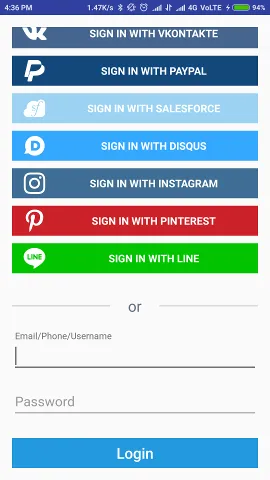
This document contains information and examples regarding the LoginRadius Android SDK. It provides guidance for working with Social Login and full User Registration.
Disclaimer: This library is meant to help you with a quick implementation of the LoginRadius platform and also to serve as a reference point for the LoginRadius API. Keep in mind that it is an open source library, which means you are free to download and customize the library functions based on your specific application needs.
And the same change should be also applied to your Reset Password Email Template Configuration.
Generate SOTT You need to pass the SOTT value at the time of registration in Android SDK V2 and you can generate this by Admin Console.
Open Admin Console, Click on SOTT (Mobile App) available in API Configurations, now click on New SOTT and set the time according to the requirement and generate SOTT.
LoginRadius SDK is now available as an AAR dependency. You can add it using File > New Module > Import .JAR/.AAR Package. Then, add it to your build.gradle:
compile project(':androidsdk-release')
Note: As LoginRadius supports communication over TLSv1.2 we don't recommend building your app for any Android distribution older than Android 5.0 – Lollipop. If you wish to use a distribution below 5.0, you will need to initialize the code below before the LoginRadius SDK initialize/call to prevent the following TLS error: (SSL handshake aborted: ssl=0xb80a2c10: I/O error).
LoginRadius provides an extra level of security for Api Credentials inside the SDK using key store encryption, this encryption will encrypt the Api Key & tenant name, to enable this encryption you need to pass true into setIsEncryption function.
init.setIsEncryption(true);
Note: For enabling encryption init.setIsEncryption(true) need to be added before initializing the API key and tenant name.
The referer header is used to determine the registration source from which the user has created the account and is synced in the RegistrationSource field for the user profile. When initializing the SDK, you can optionally specify Referer Header.
You can optionally specify Custom Header. This feature allows you to add the Custom header in an API request, you can add multiple headers using key, value pair.
LoginRadius provides key store encryption for sensitive information, you can leverage the following helper functions for encryption and decryption of sensitive information stored inside your project.
Note: These helper function require Android 6/Api Level 23 or higher.
After creating a new Android project, follow the installation section of this document. Ensure the LoginRadius Android SDK is linked to your new project as a library. Next, add the following permissions to the AndroidManifest.xml:
Web Social Login: Web Social Login is done by using Android WebView. It can be performed using any listener for buttons or other respective events. You can set any configured social provider in web social login. It can be implemented with the help of following code:
LoginRadiusSDK.WebLogin webLogin = new LoginRadiusSDK.WebLogin();webLogin.setProvider(SocialProviderConstant.FACEBOOK);webLogin.startWebLogin(LoginActivity.this,2);
Note :-
In the Android device, the sign in with apple works in WebView because Apple does not offer a native SDK for Android Developers. Apple does not control Android, but still, if you have to add a login method on your Android app too then LoginRadius Provides to make it as painless as possible to add Sign In with Apple to your Android app. After configuration apple developer account and LoginRadius Admin Console for Apple sign in you can just change the provider name to 'Apple' in the above web login code.
webLogin.setProvider("Apple");
Set the callback URL after initializing the SDK using the following code:
init.setCallback("your-callback-url");
If you have multiple Apple social apps configured in the Admin Console and want to use a specific one, you need to pass the corresponding Apple app name in the SDK.
You can configure it as follows:
webLogin.setProvider("apple_<apple_app_name>");
For example, if your Apple app name in the Admin Console is abc, then set it like this:
webLogin.setProvider("apple_abc");
Web Social Login is not supported by Facebook or Google.
Native Social Login: Login is done natively, utilizing the respective provider SDKs. It can be performed using any listener for buttons or other respective events. We support native login for Facebook, Google and Vkontakte at the moment. It can be implemented with the help of following code:
LoginRadiusSDK.NativeLogin nativeLogin = new LoginRadiusSDK.NativeLogin();nativeLogin.startFacebookNativeLogin(LoginActivity.this,2);
If you have multiple social apps configured for the same social provider then passed in the native login method as
//This unique social app name will be passed in the native login as a provider name like : `<BaseProviderName>`+`<social app name>` (eg: "facebook_myproduct1" )
nativeLogin.setSocialAppName("");
NOTE: There's nothing special about the Intent object you use when starting an activity for a result, but you do need to pass an additional integer argument to the startActivityForResult() method. The integer argument is a "request code" that identifies your request. When you receive the result Intent, the callback provides the same request code so that your app can properly identify the result and determine how to handle it.
When the user is done with the subsequent activity and returns, the system calls your activity's onActivityResult() method.
@Overrideprotected void onActivityResult(int requestCode, int resultCode, Intent data){ super.onActivityResult(requestCode, resultCode, data); // check if the request code is same as what is passed here it is 2 if(requestCode==2) { if (data != null){ Log.i("Access Token",data.getStringExtra("accesstoken")); Log.i("Provider",data.getStringExtra("provider")); } }}
After getting the access token, you need to call the following code once for the user to be visible in the Admin Console:
public void readAllUserProfile(String access_token) { QueryParams params = new QueryParams(); params.setAccess_token(access_token); AuthenticationAPI api = new AuthenticationAPI(); api.readAllUserProfile(params, new AsyncHandler < LoginRadiusUltimateUserProfile > () { @Override public void onSuccess(LoginRadiusUltimateUserProfile userProfile) { Toast.makeText(context, "First Name: " + userProfile.FirstName + " Last Name:" + userProfile.LastName, Toast.LENGTH_SHORT).show(); } @Override public void onFailure(Throwable error, String errorcode) { Toast.makeText(context, error.getMessage(), Toast.LENGTH_SHORT).show(); } });}
The following code can be used to implement traditional login:
Using Email
private void doLogin() {QueryParams params = new QueryParams();params.setEmail("xyz@mailinator.com");params.setPassword("123456");params.setEmailTemplate("<email-template>"); //put your emailTemplate(optional)AuthenticationAPI api = new AuthenticationAPI();api.login(LoginActivity.this, params, new AsyncHandler < LoginData > () { @Override public void onSuccess(LoginData logindata) { List < String > result = new ArrayList < String > (); try { for (Field field: logindata.getClass().getDeclaredFields()) { field.setAccessible(true); Object value = field.get(logindata); Log.e("access_token", logindata.getAccessToken()); Log.e("provider", logindata.getProfile().getProvider().toLowerCase()); Log.e("FirstName", logindata.getProfile().getFirstName().toString()); } } catch (Exception e) { e.printStackTrace(); } } @Override public void onFailure(Throwable error, String errorcode) { Toast.makeText(LoginActivity.this, error.getMessage(), Toast.LENGTH_LONG).show(); //this code will be use for getting pinAuthToken for calling setPinByPINAAuthToken API. if (errorResponse.getData() != null) { //the Data is generaic type of property for fetching any value from data then we can use property key LinkedTreeMap linkedTreeMap = new LinkedTreeMap(); linkedTreeMap.putAll((Map) errorResponse.getData()); Log.e("pinAuthToken", linkedTreeMap.get("PINAuthToken").toString()); } }});}
Using Phone
      	 private void doLoginByPhone() {
      	  QueryParams params = new QueryParams();
      	  params.setPhone("+91xxxxxxxxxx");
      	  params.setPassword("123456");
      	  params.setLoginUrl("<login-url>");		// put your loginUrl(required)
      	  params.setSmsTemplate("<sms-template>");	//put your smsTemplate(optional)
      	  AuthenticationAPI api = new AuthenticationAPI();
      	  api.login(LoginActivity.this, params, new AsyncHandler < LoginData > () {
      	   @Override
      	   public void onSuccess(LoginData logindata) {
      	    List < String > result = new ArrayList < String > ();
      	    try {
      	     for (Field field: logindata.getClass().getDeclaredFields()) {
      	      field.setAccessible(true);
      	      Object value = field.get(logindata);
      	      Log.e("access_token", logindata.getAccessToken());
      	      Log.e("provider", logindata.getProfile().getProvider().toLowerCase());
      	      Log.e("FirstName", logindata.getProfile().getFirstName().toString());

      	     }
      	    } catch (Exception e) {
      	     e.printStackTrace();
      	    }
      	   }
      	   @Override
      	   public void onFailure(Throwable error, String errorcode) {
      	    Toast.makeText(LoginActivity.this, error.getMessage(), Toast.LENGTH_LONG).show();

      	   }
      	  });
      	 }
Registration service supports traditional registration and login methods. Registration Service is done through Authentication API.
Registration requires a parameter called SOTT. You can create the SOTT token by following this doc
Parameters and their Description:
Name
Description
Required
SOTT
Secure One-time Token which you can check information about sott here
Yes for Registration. You can generate a long term SOTT token from the Admin Console under Deployment -> Apps -> Mobile Apps (SOTT).
smstemplate
SMS template allow you to customize the formatting and text of sms sent by users who share your content.
NO
emailTemplate
Email templates allow you to customize the formatting and text of emails sent by users who share your content. Templates can be text-only, or HTML and text, in which case the user's email client will determine which is displayed.
NO Go To Platform Configuration -> Standard Login -> Email Templates to get the template names
The following code can be used to implement registration:
Using Email
      	private void doRegistration() {
      	   QueryParams params = new QueryParams();
      	   params.setEmailTemplate("<email-template>");		//put your emailTemplate(optional)
           String sott = "put_your_sott_here"; //Required
      	   final RegistrationData data = new RegistrationData();
      	   data.setFirstName("Lee");
      	   data.setLastName("com");
      	   data.setPassword("123456");
      	   Email emailObj = new Email();
      	   emailObj.setType("Primary");
      	   emailObj.setValue("xyz@mailinator.com");
      	   data.setEmail(new ArrayList<Email>(Arrays.asList(emailObj)));

      	   AuthenticationAPI api = new AuthenticationAPI();
      	   api.register(params,sott,data,new AsyncHandler<RegisterResponse>() {
      	       @Override
      	       public void onSuccess(RegisterResponse registerResponse) {
      	           Log.e("data",registerResponse.getIsPosted().toString());
      	       }
      	       @Override
      	       public void onFailure(Throwable error, String errorcode) {
      	           Toast.makeText(MainActivity.this, error.getMessage(), Toast.LENGTH_LONG).show();

      	       }
      	   });
      	}
Using Phone
      	  private void doRegistrationByPhone() {
      	   QueryParams params = new QueryParams();
      	   params.setSmsTemplate("<sms-template>");	//put your smsTemplate(optional)
           String sott = "put_your_sott_here"; //Required
      	   final RegistrationData data = new RegistrationData();
      	   data.setFirstName("Lee");
      	   data.setLastName("com");
      	   data.setPassword("123456");
      	   data.setPhoneId("+91xxxxxxxxxx");
      	   Email emailObj = new Email();
      	   emailObj.setType("Primary");
      	   emailObj.setValue("xyz@mailinator.com");
      	   data.setEmail(new ArrayList < Email > (Arrays.asList(emailObj)));
      	   AuthenticationAPI api = new AuthenticationAPI();
      	   api.register(params,sott, data, new AsyncHandler < RegisterResponse > () {
      	    @Override
      	    public void onSuccess(RegisterResponse registerResponse) {
      	     Log.e("data", registerResponse.getIsPosted().toString());
      	    }
      	    @Override
      	    public void onFailure(Throwable error, String errorcode) {
      	     Toast.makeText(MainActivity.this, error.getMessage(), Toast.LENGTH_LONG).show();

      	    }
      	   });
      	  }
Following code can used for implementation of forgot password feature:
Using Email
      		private void doForgotPasswordByEmail() {
      		 QueryParams params = new QueryParams();
      		 params.setEmail("xyz1@mailinator.com");
      		 params.setEmailTemplate("<email-template>");												//put your emailTemplate(optional)
      		 AuthenticationAPI api = new AuthenticationAPI();
      		 api.forgotPasswordByEmail(params, new AsyncHandler<ForgotPasswordResponse>() {
      		  @Override
      		  public void onSuccess(ForgotPasswordResponse response) {
      		   Log.e("response", response.getIsPosted().toString());

      		  }
      		  @Override
      		  public void onFailure(Throwable error, String errorcode) {
      		   Toast.makeText(MainActivity.this, error.getMessage(), Toast.LENGTH_LONG).show();

      		  }
      		 });
      		}
Note : It is mandatory to whitelist the Resetpasswordurl in the Admin Console under Tenant settings > Configured Domains to use the forgot password flow.
Using Phone
      		private void doForgotPasswordByPhoneNumber() {
      		QueryParams params = new QueryParams();
      		params.setPhone("123456789");
      		params.setSmsTemplate("<sms-template>");	//put your smsTemplate(optional)
      		AuthenticationAPI api = new AuthenticationAPI();
      		api.forgotPasswordByPhone(params, new AsyncHandler<PhoneForgotPasswordResponse>() {
      		 @Override
      		 public void onSuccess(PhoneForgotPasswordResponse response) {
      		  Log.e("response", response.getIsPosted().toString());

      		 }
      		 @Override
      		 public void onFailure(Throwable error, String errorcode) {
      		  Toast.makeText(MainActivity.this, error.getMessage(), Toast.LENGTH_LONG).show();

      		 }
      		});
      		}
In the Android device, if you want to setup multiple social apps for the same social provider then you can provide a unique app name for that provider.This unique social app name will be passed in the native login as a provider name like : <BaseProviderName>+<social app name> (eg: "google_myproduct1" )
nativeLogin.setSocialAppName("");
Google Native Login
You need to add the below code on your button to run native login
  LoginRadiusSDK.NativeLogin nativeLogin = new LoginRadiusSDK.NativeLogin();
  nativeLogin.startGoogleNativeLogin(LoginActivity.this,2);
Add the following activity definitions, meta data, and permissions to your Android Manifest inside the application tag:
Generate the signing certificate fingerprint and register your application
a) Click on your package and choose New -> Google -> Google Maps Activity
b) Android Studio redirect you to google_maps_api.xml
c) Find your SHA1 fingerprint into google_maps_api.xml
OR
Generate your SHA1 by key tool.
keytool -exportcert -alias androiddebugkey -keystore path-to-debug-or-production-keystore -list -v
Open the Credentials page and follow these steps if your application needs to submit authorized requests:
a) Click Add credentials > OAuth 2.0 client ID.
b) Select Android.
c) In the Package name field, enter your Android app's package name.
d) Paste the SHA1 fingerprint into the form where requested.
Common Error Messages:
12501: This is more commonly caused by an incorrect SHA1 being used to set up your project with Google. Make sure that the SHA1 of the build you are testing matches what you used in the Developer's Console.
** Google Native Login : Refresh Token / offline-access:**
With the earlier Add Sign-In procedure, your app authenticates the user on the client side only; in that case, you can access the Google APIs only while the user is actively using your app. If you want your servers to be able to make Google API calls on behalf of users—possibly while they are offline— this can be achieved using refresh token.
Configurations:
Configure OAuth 2.0 web application for google provider from LoginRadius Admin Console Under Social Provider.
Make sure web and android configuration are configured under Single Project in Google API Console.
After configuration just need to pass your google OAuth 2.0 web application client ID in LoginRadius Android SDsK to the requestServerAuthCode.
Create a new Facebook App on the Facebook Developer site. You will need to create an Android application and get a Facebook Application ID: https://developers.facebook.com/
Create a Development Key Hash
Facebook uses the key hash to authenticate interactions between your app and the Facebook app. If you run apps that use Facebook Login, you need to add your Android development key hash to your Facebook developer profile.
You need to add this code under activity onCreate method.Put your activity package name in this code. After that run the below code and you'll get KeyHash in logs.
Now select My Apps and create a new app using "Add a New App".
After the creation of App, Click on setting into left panel, Select Add Plateform and choose Android
After generating KeyHash successfully, you need to setup below setting and fill the required fields e.g. Package Name & Class Name.
Vkontakte Native Login
First of all, you will need to create a valid account on Vkontakte.
After the account creation, visit https://vk.com/dev. Select "My apps", tap on "Create an Application".
Give appropriate title, and select "Standalone Application". Copy the Application ID. It will be required below.
After filling all of the necessary details, in the app go to "Settings". Change the "Application status" to "Application on and visible to all".
Provide a valid package name of the Android app in which you want to access the Vkontakte native login.
Next, you have to obtain SHA1 signing certificate fingerprint for authentication. You can obtain the fingerprint using the "keytool" command. You have to obtain separate fingerprints for both release and debug version. Remove colons (":") from them and don't leave empty spaces between them. Add them in the section "Signing certificate fingerprint for Android".
Now, you're ready to use Vkontakte native login. The Application ID copied in the above steps will be required here. Try the following code:
int vkontakteAppId = <Vkontakte-Application-ID>;LoginRadiusSDK.NativeLogin nativeLogin = new LoginRadiusSDK.NativeLogin();nativeLogin.startVkontakteNativeLogin(LoginActivity.this,vkontakteAppId,2);
WeChat Native Login
Create wxapi package name in built under the main package directory, and Create WXEntryActivity.java is added in the new created wxapi package to inherit WeChatNativeActivity,that exist in LoginRadius SDK.
import com.loginradius.androidsdk.activity.WeChatNativeActivity;public class WXEntryActivity extends WeChatNativeActivity { }
For initialization for the Wechat login we need setup a code for login request in any activity where you want to perform login request and get response.
public class LoginActivity extends AppCompatActivity {private IWXAPI api;private String WeChat_APP_ID = "WeChat_APP_ID";@Overrideprotected void onCreate(Bundle savedInstanceState) {api = WXAPIFactory.createWXAPI(this, WeChat_APP_ID,true);}public void wechatLogin (){WXEntryActivity.wxAppId = WeChat_APP_ID;//WXEntryActivity.isRequired =true;SendAuth.Req req = new SendAuth.Req();req.scope = "snsapi_userinfo";req.state = "wechat_sdk_Wechat login";api.sendReq(req);}public void onResume(){super.onResume();// get response from loginradiusif(WXEntryActivity.wxError != null){ WXEntryActivity.wxResponse.getAccess_token();}}}
Setup Proguard Configuration
If you intend to use ProGuard on the release build of your mobile application, you will need to add the following lines to your project's proguard-project.txt file to preserve information required for the SDK to function properly:
-keepattributes Signature-keepattributes Exceptions-keep class com.loginradius.** { *; }
Also, you need to add the configuration for support libraries of LoginRadius Android SDK. Following is the required code:
-keepattributes *Annotation*-keep class okhttp3.** { *; }-keep interface okhttp3.** { *; }-dontwarn okhttp3.**-dontnote okhttp3.**-dontwarn retrofit2.**-keep class retrofit2.** { *; }-dontwarn okio.**-keep class okio.** { *; }
Biometric Authentication provides a convenient method for authorizing access to private content within your app. To protect private content and sensitive information within your app, request Biometric Authentication, such as using face recognition or fingerprint recognition.
For detailed information, please refer to the following link.
https://developer.android.com/training/sign-in/biometric-auth
LoginRadius Android SDK contains a helper named BiometricManagerClass. You can use this helper to authenticate using facial and face recognition.
Call the following function for facilitating Biometric Authentication.
BiometricManagerClass obj = new BiometricManagerClass ( MainActivity.this );
                        //Check if Biometric is supported by device.
                        obj.isBiometricSupported ( new BiometricManagerClass.biometricSupported ( ) {

                            @Override
                            public void onBiometricDeviceSuccess() {
                   //if Biometric supported display Biometric prompt.
                                BiometricPromptBuilder biometricPromptBuilder=new BiometricPromptBuilder();
                                biometricPromptBuilder.setTitle("LoginRadius Biometric Login");
                                biometricPromptBuilder.setSubtitle ( "Log in using Biometric Credential" );
                                biometricPromptBuilder.setNegativeButtonName ( "Cancel" );
                                obj.showBiometricPrompt ( biometricPromptBuilder, new BiometricManagerClass.BiometricCallback ( ) {
                                    @Override
                                    public void onBiometricAuthenticationSuccess (  ) {
                                        // Handle authentication success.
                                        Toast.makeText ( MainActivity.this, "Authentication Succeeded!", Toast.LENGTH_SHORT ).show ( );
                                    }

                                    @Override
                                    public void onBiometricAuthenticationFailure () {
                                        // Handle authentication failure.
                                        Toast.makeText ( MainActivity.this, "Authentication failed!", Toast.LENGTH_SHORT ).show ();
                                    }

                                    @Override
                                    public void onBiometricAuthenticationError ( ErrorResponse error ) {
                                        // Handle authentication error.
                                        Toast.makeText(MainActivity.this, "Error:"+error.getMessage (), Toast.LENGTH_SHORT).show();
                                    }
                                } );
                            }

                            @Override
                            public void onBiometricDeviceError ( ErrorResponse error) {
                                // Handle cases when Biometric is not available or enrolled in the device(e.g. open setting to enroll biometric or display message.)
                                Toast.makeText(MainActivity.this, "Error:"+error.getMessage (), Toast.LENGTH_SHORT).show();
                            }

                        } );
This code handles biometric authentication in a mobile app using the Android Biometric API. Initially, it checks for device biometric support and displays a customized prompt with a dynamically passed title, subtitle, and negative button name (default values are used if not provided). The code manages success, failure, and error scenarios during authentication. Additionally, it addresses situations where biometric support is unavailable or encounters issues.
Touch ID and Face ID are preferred because these authentication mechanisms let the users access their devices in a secured manner, with minimal efforts. When you adopt the LocalAuthentication framework, you streamline the consumer authentication experience in the typical case while providing a fallback option when biometrics are not available.
Below are the implementation steps to authenticate a user using Face ID or Touch ID :
Login a user with email and password leveraging the LoginRadius Login by Email API in LoginRadius Android SDK.
After the successful authentication, the Access Token session will be created and validated as per the Access Token lifetime configured for your site.
Now you can leverage the below method to store the token and profile value in the session.
LoginUtil session = new LoginUtil(getApplicationContext());// You can store access_token after successful login.session.setLogin("<access_token>");// You can store access_token and userProfile after successful login.session.setLogin(logindata.getAccessToken(),logindata.getProfile());
Note: For more information, please refer to the Session Login/Logout section in the Android SDK documentation.
4. You can make your users authenticate using Touch ID or Face ID each time they open the app, and the session will be continued as per their Access Token lifetime.
5. To check if the session already exists or not, use the below method:
session.isLogin())
6. Now you can implement the Touch ID and Face ID Native Code in your mobile application as per your business requirement.
Refer to the documentation here for more information on logging a user into your application with Touch ID or Face ID.
In the success method, that is called after the success of biometric authentication, you can implement the LoginRadius Auth Read all Profiles by Token API and call this API based on the session store token or you may also be able to get the profile as a wall using the below method:
Log.d("token",session.getAccessToken()); //For Getting the LoginRadius Local Store(SharedPreferences) Access TokenLog.d("profile",session.getProfile().FirstName); //For Getting the LoginRadius Local Store(SharedPreferences) Profile For
Refer to the following flow for user’s experience while interacting with the application:
User runs the application and needs to login via their credentials (email and password).
User closes the application and visits the application after some time (say 2 days).
After 2 days, the application will ask the user to login again via Face ID or Touch ID.
When a user is successfully authenticated with any of these Biometric Authentication methods, then they can proceed to use the application.
Android SDK includes a Multi-factor authentication (MFA) service that provides a simple, safe way to implement MFA push notifications.
This allows you to integrate LoginRadius Android SDK multi-factor push notification functionality in your app, transforming it into the second factor itself. Your users will get all the benefits of our frictionless multi-factor authentication from your app.
Step-by-Step Guide to Configure Push Notifications with LoginRadius Android SDK:
Step 1: Set Up Firebase Cloud Messaging (FCM)
Create a Firebase Project:
Go to the Firebase Console.
Click on Add Project and follow the on-screen instructions to create a new project.
Add Your Android App to the Project:
In the Firebase console, select your project and click on the Add App button.
Choose Android and enter your app’s package name.
Download the google-services.json file and place it in the app directory of your Android project.
Configuration in Admin Console:
In the Firebase console, select your project and navigate to the Service Accounts tab.
Click on "Generate New Private Key" to download the service.json file.
Upload this file by clicking on the "Choose File" button in the Android app configuration section of the Admin Console.
Add Firebase SDK to Your Project:
Add the following dependencies to your build.gradle files:
Project-level build.gradle:
buildscript { dependencies { // Add the Google services classpath classpath 'com.google.gms:google-services:4.4.1' }}
App-level build.gradle:
dependencies { // Add Firebase SDK implementation 'com.google.firebase:firebase-messaging:23.0.0' implementation 'com.google.firebase:firebase-analytics:21.1.0'}// Apply the Google services pluginapply plugin: 'com.google.gms.google-services'
Create a new Java class Firebase to handle incoming FCM messages and fetch the FCM token. This class will manage both foreground and background notifications.
public class Firebase extends FirebaseMessagingService { private static final String TAG = "MyFirebaseMessagingService"; @SuppressLint("LongLogTag") @RequiresApi(api = Build.VERSION_CODES.O) public void onMessageReceived( RemoteMessage remoteMessage) { Log.d(TAG, String.format("Received FCM message from: %s with data: %s", remoteMessage.getFrom(), remoteMessage.getData())); // Extract notification details RemoteMessage.Notification notification = remoteMessage.getNotification(); Map<String, String> data = remoteMessage.getData(); String sender = String.valueOf ( data ); System.out.println ( "Notification Received" + sender ); if(isForeground(this)){ Intent dialogIntent = new Intent(this, YourActivity.class); dialogIntent.addFlags(Intent.FLAG_ACTIVITY_NEW_TASK); // Put data into intent extras for (Map.Entry<String, String> entry : data.entrySet()) { dialogIntent.putExtra(entry.getKey(), entry.getValue()); System.out.println("Entry value is "+entry); } startActivity(dialogIntent); } else{ showNotification(notification); } } public void showNotification(RemoteMessage.Notification notification) { Intent intent = new Intent(this,YourActivity.class); intent.addFlags(Intent.FLAG_ACTIVITY_CLEAR_TOP | Intent.FLAG_ACTIVITY_CLEAR_TOP); PendingIntent notifyIntent = PendingIntent.getActivity(this, 0, intent, PendingIntent.FLAG_UPDATE_CURRENT | PendingIntent.FLAG_IMMUTABLE); Log.d("notify",notifyIntent.toString()); NotificationCompat.Builder builder = new NotificationCompat .Builder(getApplicationContext(), "LoginRadiusSDK") .setSmallIcon(com.loginradius.authenticator.R.mipmap.ic_launcher_icon_new) .setAutoCancel(true) .setVibrate(new long[]{1000, 1000, 1000, 1000, 1000}) .setOnlyAlertOnce(true) .setContentIntent(notifyIntent); builder = builder .setContentText(notification.getTitle() != null ? notification.getTitle() : "Please verify your Login Attempt") //.setContentText(notification.getTitle()) .setSmallIcon(com.loginradius.authenticator.R.mipmap.ic_launcher_icon_new); NotificationManager notificationManager = (NotificationManager) getSystemService(Context.NOTIFICATION_SERVICE); // Check if the Android Version is greater than Oreo if (Build.VERSION.SDK_INT >= Build.VERSION_CODES.O) { NotificationChannel notificationChannel = new NotificationChannel("LoginRadiusSDK", "web_app", NotificationManager.IMPORTANCE_HIGH); notificationManager.createNotificationChannel( notificationChannel); notificationManager.notify(0, builder.build()); } } private static boolean isForeground(Context context) { ActivityManager manager = (ActivityManager) context.getSystemService(Context.ACTIVITY_SERVICE); List<ActivityManager.RunningTaskInfo> runningTaskInfo = manager.getRunningTasks(1); ComponentName componentInfo = runningTaskInfo.get(0).topActivity; return componentInfo.getPackageName().equals(context.getPackageName()); } @SuppressLint("LongLogTag") @Override public void onNewToken(@NonNull String token) { Log.d(TAG, "Refreshed token: " + token); }}
This class will generate the device token during the device registration process and extend the service to handle push notifications.
It will check whether the app is in the foreground or background.
If the app is in the foreground, it will call the activity responsible for displaying the UI for the push notification, including allow or deny options.
When the app is in the background, it shows the notification in the notification tray and passes the data to the default or launcher activity, which then passes the data to the activity responsible for displaying the push notification with allow and deny options.
Add the following code to the main or launcher activity to pass the data to the activity responsible for displaying the push notification information.
Intent i = getIntent();
        Bundle extras = i.getExtras();
        if (extras != null) {
            Intent newIntent = new Intent(this, YourActivity.class);
            newIntent.addFlags(Intent.FLAG_ACTIVITY_NEW_TASK | Intent.FLAG_ACTIVITY_CLEAR_TOP);
            newIntent.putExtras(extras);
            startActivity(newIntent);
            finish();
        }
Fetch the data from the intent passed by your main or launcher activity to retrieve the push notification details triggered by the backend. This data can then be used to display the following information on your screen.
Upon allowing or denying the request, call the Push verification API with the following parameters and handle the success and failure according to your case.
Pass "yes" in the signature parameter and the secondFactorAuthToken in the createSignature function if the user clicks the "Yes" button. If the user clicks "No," pass "No" along with the secondFactorAuthToken.
// Sign Yes or No and SFA and send to the APIQRScanner qrscanner = new QRScanner(this);QueryParams queryParams = new QueryParams();String signedData = qrscanner.createSignature("Yes", secondFactorAuthToken); MFAPushAPI api = new MFAPushAPI(); JsonObject jsonData = new JsonObject(); jsonData.addProperty("verify", "Yes"); jsonData.addProperty("signature", signedData); api.MfaPushVerification(jsonData, queryParams, new AsyncHandler<PostResponse>() { @Override public void onSuccess(PostResponse data) { Toast.makeText(YourActivity.this, "Verification sent successfully", Toast.LENGTH_LONG).show(); } @Override public void onFailure(Throwable error, String errorcode) { System.out.println("Error is:" + error.getMessage()); Toast.makeText(yourActivity.this, "Error:" + error.getMessage(), Toast.LENGTH_LONG).show(); finish(); } });
To handle notification permissions for Android API level 33 and above, and to redirect the user to the app's notification settings if the necessary permission is not granted, use the code below:
// This is only necessary for API level >= 33 (TIRAMISU)
            if (Build.VERSION.SDK_INT >= Build.VERSION_CODES.TIRAMISU) {
                if (ContextCompat.checkSelfPermission(this, Manifest.permission.POST_NOTIFICATIONS) ==
                        PackageManager.PERMISSION_GRANTED
                ) {

                }
                else{
                    Intent settingsIntent = new Intent(Settings.ACTION_APP_NOTIFICATION_SETTINGS)
                            .addFlags(Intent.FLAG_ACTIVITY_NEW_TASK)
                            .putExtra(Settings.EXTRA_APP_PACKAGE, getPackageName());
                    startActivity(settingsIntent);
                } }
You can view the sample DisplayScreen activity that sets the push data, displays the information, and calls the Push Verification API in the demo project of the Android SDK repository here.
Add the Firebase class to the Manifest File.
Step 3: Register the device to receive Push Notifications
The Android SDK includes a helper class, QRScanner, which fetches the FCM Device token, scans QR codes, and registers the device to receive Push notifications. You can call the function below in your Main Activity to register the device. On button click, it will start scanning the MFA, push QR code, and register the device. You can also pass a custom success message upon successful device registration. Here is the implementation code:
 public QRScanner qrscanner;
 qrscanner = new QRScanner ( this );
 String SuccessMessage = "Device is registered successfully";
                qrscanner.startScan (SuccessMessage );
Make sure to call onActivityResult of QRScanner within MainActivity's onActivityResult to return the result data to the QR Scanner helper.
 @Override
    protected void onActivityResult ( int requestCode, int resultCode, Intent data ) {
        super.onActivityResult ( requestCode, resultCode, data );
        qrscanner.onActivityResult ( requestCode, resultCode, data );
    }
Upon successful device registration, a toast message saying "Registration successful" will be displayed. If any errors occur during registration, an error message will be shown.
After successful login or social login LoginRadius access token and user profile can be accessed like this.
Log.d("token",session.getAccessToken()); //For Getting the LoginRadius Local Store(SharedPreferences) Access Token For Further Uses.Log.d("profile",session.getProfile().FirstName); //For Getting the LoginRadius Local Store(SharedPreferences) Profile For Further Uses.
We added a small boolean function if you want to check whether the user is logged in or not.
SSO allows a single identity for each customer to be created and recognized across all of your Android app properties. This makes it possible for your customers to easily navigate between the app with one social ID.
Add the following data sharedUserId to your Android Manifest after the package tag:
android:sharedUserId="com.example"
SSO code given below requires to be included in all the Activity where you have handled Login functionality. Use the below code for enabling the SSO Login for Android Applications.
In the loginradiusSso method, you must pass other app applicationId From Which app you are using to get the Loginradius token. applicationId store in your app build.gradle file.
Context con = createPackageContext("put your second app applicationId", 0);
After successful login you must be added the code for the logout.
Context con = null;try {con = createPackageContext("put your second app applicationId", 0);} catch (PackageManager.NameNotFoundException e) {e.printStackTrace();}SharedPreferences pref = con.getSharedPreferences(Endpoint.SHAREDPREFERENCEFILEKEY, MODE_PRIVATE);pref.edit().remove("ssoaccesstoken").apply();SharedPreferences.Editor editor = getSharedPreferences(Endpoint.SHAREDPREFERENCEFILEKEY, MODE_PRIVATE).edit();editor.remove("ssoaccesstoken");editor.apply();
##Advanced Configuration
Social Login Required Fields Flow
After the process of social login, the SDK flow is redirected to a predefined form having a list of required and optional fields. They are needed to fill out the missing information about the user. If there is a need to customize the default form, options listed below are helpful.
For social web login
LoginRadiusSDK.WebLogin webLogin = new LoginRadiusSDK.WebLogin();webLogin.setProvider(SocialProviderConstant.FACEBOOK);//avoid the required fields formwebLogin.setRequired(false);//set the color for required fieldswebLogin.setFieldsColor(Col1or.parseColor("#000000"));webLogin.startWebLogin(LoginActivity.this,2);
For social native login
LoginRadiusSDK.NativeLogin nativeLogin = new LoginRadiusSDK.NativeLogin();//avoid the required fields formnativeLogin.setRequired(false);//set the color for required fieldsnativeLogin.setFieldsColor(Color.parseColor("#000000"));nativeLogin.startFacebookNativeLogin(LoginActivity.this,2);
For traditional login
QueryParams params = new QueryParams();params.setEmail("<email-address>");params.setPassword("<password>");params.setEmailTemplate("<email-template>"); //optionalAuthenticationAPI api = new AuthenticationAPI();//Used to enable missing/required fields flow in traditional login.api.setAskRequiredFieldsOnTraditionalLogin(false); //true, by defaultapi.login(getApplicationContext(), params, new AsyncHandler<LoginData>() { @Override public void onSuccess(LoginData data) { Log.i("Login By Email","First Name: "+data.getProfile().getFirstName()); } @Override public void onFailure(Throwable error, String errorcode) { Log.i("Login By Email","Error: "+error.getMessage()); }});
Social Login Custom Scope
There are some special permissions related to accessing a user's social account. They are known as scopes. There are some default scopes needed for user data. But, they can be overridden for some special needs. To use only specified custom scopes and ignoring the default ones, you can try out the following code:
LoginRadiusSDK.WebLogin webLogin = new LoginRadiusSDK.WebLogin();webLogin.setProvider(provider.getName().toLowerCase());webLogin.setCustomScopeEnabled(true);webLogin.startWebLogin(LoginActivity.this,2);
Configure Custom Verification URL and Reset Password URL
When the user is being registered with the help of email, it needs to be verified through a link received in the email. A similar link is received when the user tries to recover password through email. By default, the link redirects to the default LoginRadius Identity Experience Framework. Following represents the URL of the default Identity Experience Framework:
To override the default verification and reset password url, additional parameters can be passed at the time of SDK initialization. Following code can be used for reference:
LoginRadiusSDK.Initialize init = new LoginRadiusSDK.Initialize();init.setApiKey("<your-api-key>");init.setSiteName("<your-site-name>");init.setVerificationUrl("<your-verification-url>");init.setResetPasswordUrl("<your-reset-password-url>");
This section helps you to explore various API methods of LoginRadius Android SDK. They can be used to fulfill your identity based needs related to traditional login, registration, social login and many more.
This API is used to perform operations on a user account after the user has authenticated himself for the changes to be made. Generally, it is used for front end API calls. Following is the list of methods covered under this API:
This API retrieves a copy of the user data based on the Email.
QueryParams params = new QueryParams();params.setEmail("<email-address>");params.setPassword("<password>");params.setEmailTemplate("<email-template>"); //optionalparams.setPreventEmailVerification(true); //optionalAuthenticationAPI api = new AuthenticationAPI();api.login(getApplicationContext(), params, new AsyncHandler<LoginData>() { @Override public void onSuccess(LoginData data) { Log.i("Login By Email","First Name: "+data.getProfile().getFirstName()); } @Override public void onFailure(Throwable error, String errorcode) { Log.i("Login By Email","Error: "+error.getMessage()); }});
This API retrieves a copy of the user data based on the Username.
QueryParams params = new QueryParams();params.setUsername("<username>");params.setPassword("<password>");params.setEmailTemplate("<email-template>"); //optionalparams.setPreventEmailVerification(true); //optionalAuthenticationAPI api = new AuthenticationAPI();api.login(getApplicationContext(), params, new AsyncHandler<LoginData>() { @Override public void onSuccess(LoginData data) { Log.i("Login By Username","First Name: "+data.getProfile().getFirstName()); } @Override public void onFailure(Throwable error, String errorcode) { Log.i("Login By Username","Error: "+error.getMessage()); }});
This API retrieves a copy of the user data based on the access token.
QueryParams params = new QueryParams();params.setAccess_token("<your-access-token>");AuthenticationAPI api = new AuthenticationAPI();api.readAllUserProfile(params, new AsyncHandler<LoginRadiusUltimateUserProfile>() { @Override public void onSuccess(LoginRadiusUltimateUserProfile data) { Log.i("Complete User Profile","Email: "+data.Email.get(0).Value); Log.i("Complete User Profile","UID: "+data.getUid()); Log.i("Complete User Profile","No of Logins: "+data.getNoOfLogins()); } @Override public void onFailure(Throwable error, String errorcode) { Log.i("Complete User Profile","Error: "+error.getMessage()); }});
This API is used to link up a social provider account with the specified account based on the access token and the social providers user access token.
QueryParams params = new QueryParams();params.setAccess_token("<email-login-access-token>");JsonObject change = new JsonObject();change.addProperty("candidateToken", "<provider-login-access-token>");AuthenticationAPI api = new AuthenticationAPI();api.linkAccount(params, change, new AsyncHandler <RegisterResponse> () { @Override public void onSuccess(RegisterResponse registerResponse) { if (registerResponse.getIsPosted()) { Log.i("Link Social Account","Success"); } } @Override public void onFailure(Throwable error, String errorcode) { Log.i("Link Social Account",error.getMessage()); }});
This API is used to unlink up a social provider account with the specified account based on the access token and the social providers user access token. The unlinked account will automatically get removed from your database.
QueryParams params = new QueryParams();params.setAccess_token("<email-login-access-token>");JsonObject change = new JsonObject();change.addProperty("Provider", "<provider-name>");change.addProperty("ProviderId", "<provider-token>");AuthenticationAPI api = new AuthenticationAPI();api.unlinkAccount(params, change, new AsyncHandler < DeleteResponse > () { @Override public void onSuccess(DeleteResponse deleteResponse) { if (deleteResponse.getIsDeleted()) { Log.i("Unlink Social Account","Success"); } } @Override public void onFailure(Throwable error, String errorcode) { Log.i("Unlink Social Account",error.getMessage()); }});
This API is used to add additional emails to a user's account.
QueryParams params = new QueryParams();params.setAccess_token("<your-access-token>");JsonObject update = new JsonObject();update.addProperty("Email", "<email-address>");update.addProperty("Type", "Secondary"); // your email typeAuthenticationAPI api = new AuthenticationAPI();api.addEmail(params, update, new AsyncHandler <RegisterResponse> () { @Override public void onSuccess(RegisterResponse registerResponse) { if (registerResponse.getIsPosted()) { Log.i("Add Email","Please verify your email to add your email"); } } @Override public void onFailure(Throwable error, String errorcode) { Log.i("Add Email","Error: "+error.getMessage()); }});
This API is used to send the reset password url to a specified account.
QueryParams params = new QueryParams();params.setEmail("<email-address>");params.setEmailTemplate("<email-template>"); //optionalAuthenticationAPI api = new AuthenticationAPI();api.forgotPasswordByEmail(params, new AsyncHandler<ForgotPasswordResponse>() { @Override public void onSuccess(ForgotPasswordResponse data) { if(data.getIsPosted()){ Log.i("Forgot Password Email","Reset password link sent on your email"); } } @Override public void onFailure(Throwable error, String errorcode) { Log.i("Forgot Password Email","Error: "+error.getMessage()); }});
This API retrieves a copy of the user data based on the Email with help of security questions, when the account gets locked.
QueryParams params = new QueryParams();params.setEmail("<email>");params.setPassword("<password>");params.setEmailTemplate("<email-template>"); //optionalJsonObject qaJson = new JsonObject();qaJson.addProperty("<question-id>","<answer>"); //there can be multiple question and answer pairs......AuthenticationAPI api = new AuthenticationAPI();api.loginWithSecurityQuestion(LoginActivity.this, params, qaJson, new AsyncHandler<LoginData>() { @Override public void onSuccess(LoginData data) { if(data!=null){ Log.i("Login","Success"); } } @Override public void onFailure(Throwable error, String errorcode) { Log.i("Login","Error: "+error.getMessage()); }});
This API retrieves a copy of the user data based on the Username with help of security questions, when the account gets locked.
QueryParams params = new QueryParams();params.setUsername("<username>");params.setPassword("<password>");params.setEmailTemplate("<email-template>"); //optionalJsonObject qaJson = new JsonObject();qaJson.addProperty("<question-id>","<answer>"); //there can be multiple question and answer pairs......AuthenticationAPI api = new AuthenticationAPI();api.loginWithSecurityQuestion(LoginActivity.this, params, qaJson, new AsyncHandler<LoginData>() { @Override public void onSuccess(LoginData data) { if(data!=null){ Log.i("Login","Success"); } } @Override public void onFailure(Throwable error, String errorcode) { Log.i("Login","Error: "+error.getMessage()); }});
This API is used to perform operations on a user account by Phone after the user has authenticated himself for the changes to be made. Generally, it is used for front end API calls. Following is the list of methods covered under this API:
This API registers the new users into your Cloud Directory and triggers the phone verification process.
QueryParams params = new QueryParams();params.setSmsTemplate("<sms-template>"); //optionalparams.setPreventEmailVerification(true); //optionalString sott = "put_your_sott_here"; //Requiredfinal RegistrationData data = new RegistrationData();data.setFirstName("<firstname>");data.setLastName("<lastname>");data.setPassword("<password>");data.setPhoneId("<mobile-phone-number>");data.setAcceptPrivacyPolicy(true); //optionalAuthenticationAPI api = new AuthenticationAPI();api.register(params,sott,data,new AsyncHandler<RegisterResponse>() { @Override public void onSuccess(RegisterResponse registerResponse) { if(registerResponse.getIsPosted()){ Log.i("Registration By Phone","OTP sent to your mobile number"); } } @Override public void onFailure(Throwable error, String errorcode) { Log.i("Registration By Phone","Error: "+error.getMessage()); }});
This API retrieves a copy of the user data based on the Phone.
QueryParams params = new QueryParams();params.setPhone("<mobile-phone-number>");params.setPassword("<password>");params.setSmsTemplate("<sms-template>"); //optionalAuthenticationAPI api = new AuthenticationAPI();api.login(getApplicationContext(), params, new AsyncHandler<LoginData>() { @Override public void onSuccess(LoginData data) { Log.i("Login By Phone","First Name: "+data.getProfile().getFirstName()); } @Override public void onFailure(Throwable error, String errorcode) { Log.i("Login By Phone","Error: "+error.getMessage()); }});
This API is used to send the OTP to reset the account password.
QueryParams params = new QueryParams();params.setPhone("<mobile-phone-number>");params.setSmsTemplate("<sms-template>"); //optionalAuthenticationAPI api = new AuthenticationAPI();api.forgotPasswordByPhone(params, new AsyncHandler<PhoneForgotPasswordResponse>() { @Override public void onSuccess(PhoneForgotPasswordResponse data) { if(data.getIsPosted()){ Log.i("Forgot Password Phone","OTP sent on your mobile number"); } } @Override public void onFailure(Throwable error, String errorcode) { Log.i("Forgot Password Phone","Error: "+error.getMessage()); }});
This API is used to check the Phone Number exists or not on your site.
QueryParams params = new QueryParams();params.setPhone("<mobile-phone-number>");AuthenticationAPI api = new AuthenticationAPI();api.checkPhoneAvailability(params, new AsyncHandler <CheckAvailability> () { @Override public void onSuccess(CheckAvailability data) { if(data.getIsExist()){ Log.i("Check Phone","Phone number exists"); }else{ Log.i("Check Phone","Phone number not exists"); } } @Override public void onFailure(Throwable error, String errorcode) { Log.i("Check Phone","Error: "+error.getMessage()); }});
This API is used to resend a verification OTP to verify a user's Phone Number. The user will receive a verification code that they will need to input.
JsonObject register = new JsonObject();register.addProperty("Phone", "<mobile-phone-number>");AuthenticationAPI api = new AuthenticationAPI();api.resendOtp(register, new AsyncHandler <RegisterResponse> () { @Override public void onSuccess(RegisterResponse response) { if(response.getIsPosted()){ Log.i("Resend OTP","OTP sent again to your mobile phone"); } } @Override public void onFailure(Throwable error, String errorcode) { Log.i("Resend OTP","Error: "+error.getMessage()); }});
This API is used to resend a verification OTP to verify a user's Phone Number in cases in which an active token already exists.
QueryParams params = new QueryParams();params.setAccess_token("<your-access-token>");AuthenticationAPI api = new AuthenticationAPI();api.resendOtpByToken(params, new AsyncHandler < PhoneResponse > () { @Override public void onSuccess(PhoneResponse response) { if(response.getIsPosted()!=null){ Log.i("Resend OTP","OTP sent again to your mobile phone"); } } @Override public void onFailure(Throwable error, String errorcode) { Log.i("Resend OTP","Error: "+error.getMessage()); }});
This API is used to consume the verification code sent to verify a user's phone number. Use this call for front-end purposes in cases where the user is already logged in by passing the user's access token.
QueryParams params = new QueryParams();params.setAccess_token("<your-access-token>");params.setOtp("<otp-value>");params.setSmsTemplate("<sms-template>"); //optionalJsonObject register = new JsonObject();register.addProperty("Phone", "<phone-number>");AuthenticationAPI api = new AuthenticationAPI();api.verifyOtp(params, register, new AsyncHandler < LoginData > () { @Override public void onSuccess(LoginData response) { Log.i("Verify OTP", "Access Token: "+response.getAccessToken()); } @Override public void onFailure(Throwable error, String errorcode) { Log.i("Verify OTP", "Error: "+error.getMessage()); }});
This API retrieves a copy of the user data based on the Phone with help of security questions, when the account gets locked.
QueryParams params = new QueryParams();params.setPhone("<mobile-phone-number>");params.setPassword("<password>");params.setLoginUrl("<login-url>"); //optionalparams.setSmsTemplate("<sms-template>"); //optionalJsonObject qaJson = new JsonObject();qaJson.addProperty("<question-id>","<answer>"); //there can be multiple question and answer pairs......AuthenticationAPI api = new AuthenticationAPI();api.loginWithSecurityQuestion(LoginActivity.this, params, qaJson, new AsyncHandler<LoginData>() { @Override public void onSuccess(LoginData data) { if(data!=null){ Log.i("Login","Success"); } } @Override public void onFailure(Throwable error, String errorcode) { Log.i("Login","Error: "+error.getMessage()); }});
This API is used to perform operations on a user account by PIN after the user has authenticated himself for the changes to be made. Generally, it is used for front end API calls. Following is the list of methods covered under this API:
This API is used to simplify the registration process to the minimum steps. It is really useful when there is a need to avoid hassles related to user registration. Following is the list of methods covered under this API:
This API is used to implement Smart Login. It includes methods to send Smart Login links to the customer's email, verifying them and validating their hit count. Following is the list of methods covered under this API:
This API sends a Smart Login link to the customer's Email Id.
QueryParams params = new QueryParams();params.setEmail("<email>");params.setClientGuid("<client-guid>");params.setWelcomeEmailTemplate("<welcome-email-template>");params.setSmartLoginEmailTemplate("<smart-login-email-template>"); //optionalSmartLoginAPI api = new SmartLoginAPI();api.login(params, new AsyncHandler < RegisterResponse > () { @Override public void onSuccess(RegisterResponse response) { if(response.getIsPosted()){ Log.i("Smart Login","Smart Login link sent on your email"); } } @Override public void onFailure(Throwable error, String errorcode) { Log.i("Smart Login","Error: "+error.getMessage()); }});
This API sends a Smart Login link to the customer's Email Id.
QueryParams params = new QueryParams();params.setUsername("<username>");params.setClientGuid("<client-guid>");params.setWelcomeEmailTemplate("<welcome-email-template>");params.setSmartLoginEmailTemplate("<smart-login-email-template>"); //optionalSmartLoginAPI api = new SmartLoginAPI();api.login(params, new AsyncHandler < RegisterResponse > () { @Override public void onSuccess(RegisterResponse response) { if(response.getIsPosted()){ Log.i("Smart Login","Smart Login link sent on your email"); } } @Override public void onFailure(Throwable error, String errorcode) { Log.i("Smart Login","Error: "+error.getMessage()); }});
This API is used to implement a passwordless login flow. It includes methods for sending passwordless login links through email and username. Also, they allow to verify those links. Following is the list of methods covered under this API:
This API is used to send Passwordless Login verification link by Email ID.
QueryParams params = new QueryParams();params.setEmail("<email-address>");params.setPasswordlessLoginTemplate("<password-less-login-template>"); //optionalPasswordlessLoginAPI api = new PasswordlessLoginAPI();api.loginByEmail(params, new AsyncHandler<UpdateResponse>() { @Override public void onSuccess(UpdateResponse data) { if(data.getPosted()){ Log.i("Passwordless Login","Passwordless Login link sent on your email"); } } @Override public void onFailure(Throwable error, String errorcode) { Log.i("Passwordless Login","Error: "+error.getMessage()); }});
This API is used to send Passwordless Login verification link by UserName.
QueryParams params = new QueryParams();params.setUsername("<username>");params.setPasswordlessLoginTemplate("<password-less-login-template>"); //optionalPasswordlessLoginAPI api = new PasswordlessLoginAPI();api.loginByUsername(params, new AsyncHandler<UpdateResponse>() { @Override public void onSuccess(UpdateResponse data) { if(data.getPosted()){ Log.i("Passwordless Login","Passwordless Login link sent on your email"); } } @Override public void onFailure(Throwable error, String errorcode) { Log.i("Passwordless Login","Error: "+error.getMessage()); }});
This API is used to create additional custom fields for user registration. It provides methods for creating, updating and deleting custom objects. Following is the list of methods covered under this API:
This API is used to update the specified custom object data of the specified account. If the value of updatetype is 'replace' then it will fully replace custom object with the new custom object and if the value of updatetype is 'partialreplace' then it will perform an upsert type operation.
QueryParams params = new QueryParams();params.setObjectname("<put-CustomObject-name>");params.setObjectRecordId("<put-CustomObject-recordid>");params.setAccess_token("<your-access-token>");// params.setUpdatetype(true); // if you want to do replace all data (optional)JsonObject updatedata = new JsonObject();updatedata.addProperty("<customdata1>", "<value>");updatedata.addProperty("<customdata2>", "<value>");CustomObjectAPI api = new CustomObjectAPI();api.updateCustomObject(params,updatedata, new AsyncHandler<CreateCustomObject>() { @Override public void onSuccess(CreateCustomObject customObject) { if(customObject!=null){ Log.i("Update Custom Object","Success"); } } @Override public void onFailure(Throwable error, String errorcode) { Log.i("Update Custom Object","Error: "+error.getMessage());});
When you want to get selected fields of data, you can pass additional info in the API method. For example, if you want only the FirstName and LastName field from the profile data, you can use the following code:
String fields[] = new String[]{"FirstName","LastName"};QueryParams params = new QueryParams();params.setAccess_token("<your-access-token>");params.setFields(fields);AuthenticationAPI api = new AuthenticationAPI();api.readAllUserProfile(params, new AsyncHandler<LoginRadiusUltimateUserProfile>() { @Override public void onSuccess(LoginRadiusUltimateUserProfile data) { Log.i("Profile Data","First Name: "+data.FirstName+" Last Name: "+data.LastName); } @Override public void onFailure(Throwable error, String errorcode) { Log.i("Profile Data","Error: "+error.getMessage()); }});
In another case, when the data is nested i.e. inside an object or an array, you can use round brackets "()" to pass the info in proper hierarchy. For example, in the above scenario, if you want to extract the Value from Email array, you can use the following code:
String fields[] = new String[]{"Email(Value)"};QueryParams params = new QueryParams();params.setAccess_token("<your-access-token>");params.setFields(fields);AuthenticationAPI api = new AuthenticationAPI();api.readAllUserProfile(params, new AsyncHandler<LoginRadiusUltimateUserProfile>() { @Override public void onSuccess(LoginRadiusUltimateUserProfile data) { Log.i("Profile Data","Email Value: "+data.Email.get(0).Value); } @Override public void onFailure(Throwable error, String errorcode) { Log.i("Profile Data","Error: "+error.getMessage()); }});
Projection of fields can be applied to the following API methods:
You can try out the bundled demo application with SDK to explore various features. Following are some key features highlighted in the demo app:
Login - to show login interface
Registration - to show the registration form as per your configuration
Forgot Password - to show forgot password interface
After importing the demo project in Android Studio, there is a need to configure API Key, tenant name and SOTT. These values are initialized in MainActivity.java.
LoginRadiusSDK.Initialize init = new Initialize();init.setApiKey(getString(R.string.api_key));init.setSiteName(getString(R.string.site_name));
You can configure API Key and tenant name values in the strings.xml of the demo project.